
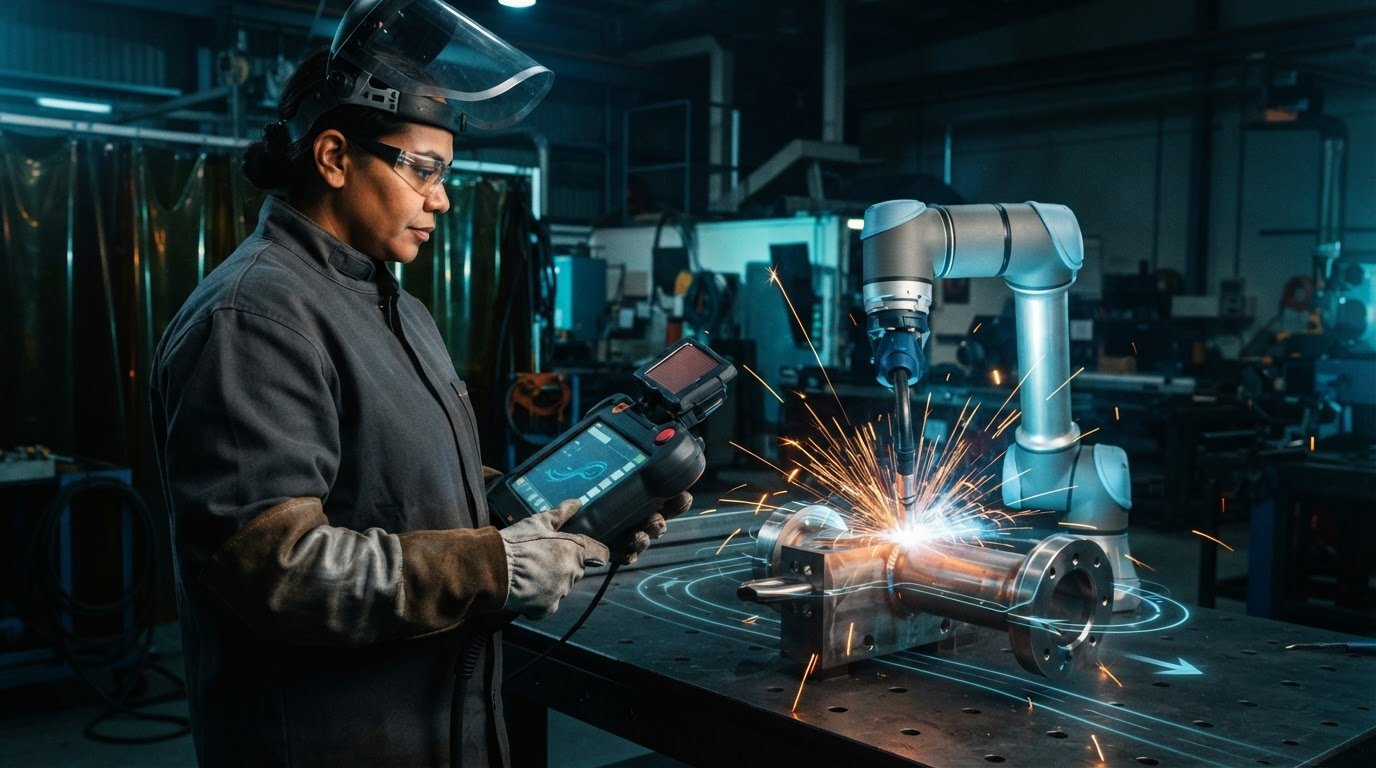
You can teach many robotic welds without writing robot code: with a hands-on approach, most can be programmed in less than 20 minutes. Programming a weld without code means setting the weld sequence, torch position and travel speed through a teaching interface, then estimating cycle time from the planned arc time and robot movements before exporting the program.
It’s sensible to want a timing estimate before a program reaches the cell. Treat it as a planning guide, not just the time the torch spends welding: approach, repositioning and return movements all contribute to the cycle. The part, path and process settings shape the result.
This guide explains how programming a weld without code works, how operators teach paths and configure welding parameters, and which jobs suit this approach. You’ll also learn how to estimate cycle time, what to check during hands-on teaching, and when another programming method may better suit the task.
Key Takeaways
- Estimate cycle time by accounting for the full robot path, including approach, repositioning and return movements, not just arc time.
- Plan the weld sequence and torch position, then set travel speed and process parameters to suit the part and weld.
- Frequent part changes can make hands-on teaching useful for getting from a fixture setup to a usable weld more efficiently.
- Compare drag-to-teach with teach-pendant jogging to choose a practical way to program each new part.
1. Programming robot weld cells with minimal coding
Programming a weld without code replaces robot syntax with practical teaching steps. The operator sets the weld sequence, torch position and travel speed through the welding system, then refines the motion against the part. Most welds can be programmed in less than 20 minutes using a hands-on collaborative welding approach, including by operators without prior robotic experience.
Secure the part in its fixture and identify the weld’s start and finish points. Teach the path by guiding the torch along the joint, then configure travel speed and the required welding parameters. A pendant can still be useful for setup or adjustments, but no coding experience is needed: operators don’t have to write robot instructions line by line. Keep movements and instructions clear so the program is easier to understand and adjust.
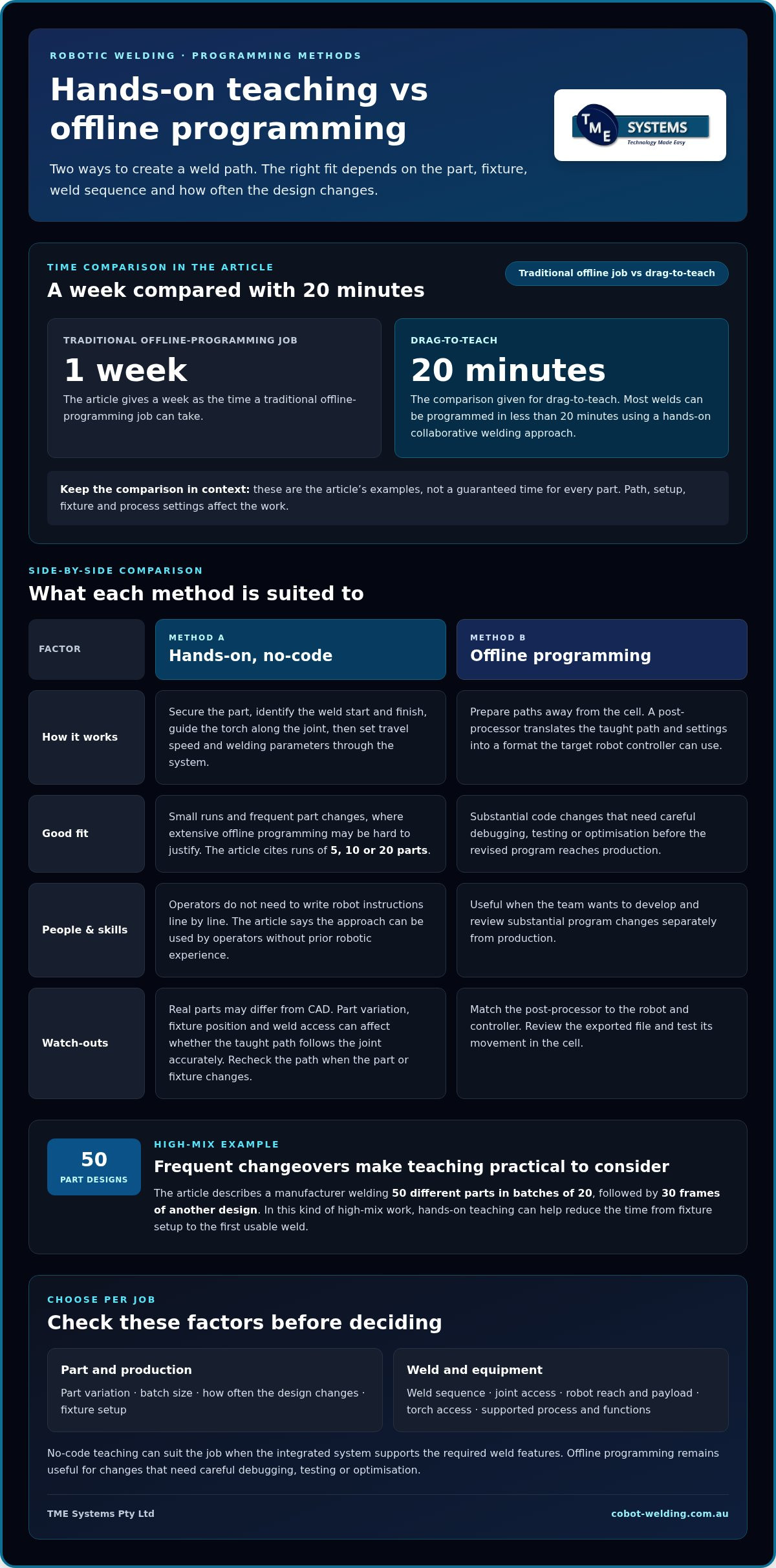
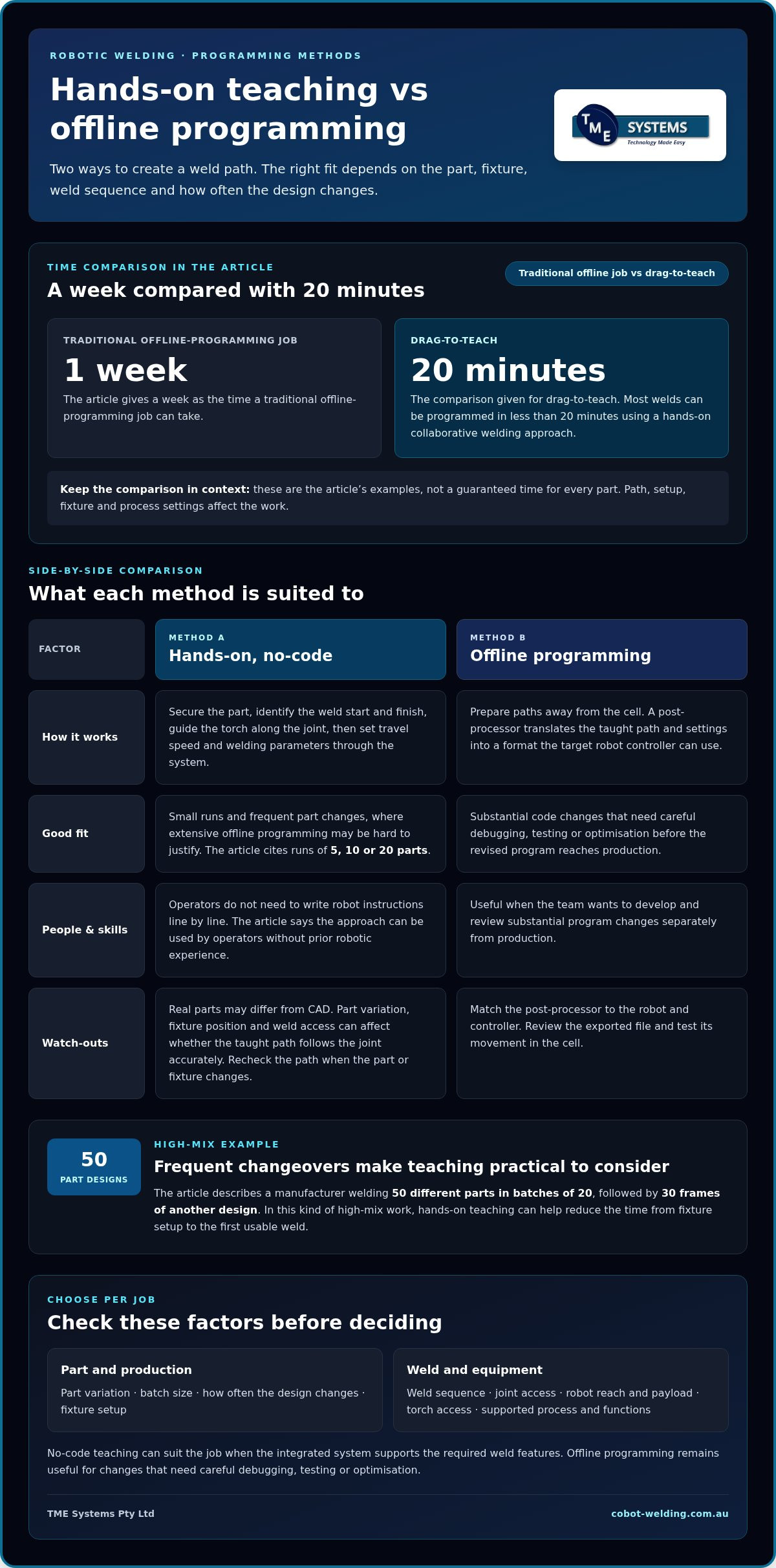
Batch size matters. No-code teaching can make robot welding viable for small runs of 5, 10 or 20 parts, where extensive offline programming may be hard to justify. A traditional offline-programming job can take a week, compared with 20 minutes for drag-to-teach. The practical choice depends on the part, fixture, weld sequence and how often the design changes.
Before exporting, a post-processor translates the taught path and settings into a program format the target robot controller can use. Match the post-processor to the robot and controller, then review the exported file and test its movement in the cell. This step matters because a correct-looking path must still suit the installed equipment.
Select a welding robot by matching its reach, payload, torch access and motion to the part and fixture. Check whether it can reach every joint without awkward repositioning, and whether the cell supports the required welding process. These factors help determine whether teaching on the real equipment or preparing paths offline better suits the job.
2. Creating weld paths and configuring welding parameters
Start with the joint, not the software screen. Secure the part, identify the weld start and finish, then teach the torch approach, seam position and exit movement. Keep the weld path close to the joint and avoid unnecessary travel between seams. For a new part, contour programming can take 5–10 minutes, depending on the path and setup.
Next, set welding parameters for the material, joint and process. Configure arc welding settings such as voltage and travel speed, then save suitable settings with the taught path. Reusable templates can hold start, stop and weave files, helping operators apply consistent settings to similar parts. For multi-pass work, plan each pass in sequence, including its position and direction, rather than treating the joint as one continuous weld.
Use the software’s available functions to add weaving, stitch welding, tack welds, offsets or touch sensing. These depend on the installed equipment and its supported functions. Before export, simulate or dry-run the sequence where the system allows it. Check torch clearance, approach and exit movements, positioner movement and fixture access. This catches path conflicts before production and helps make the sequence more accurate.
Real parts can differ from CAD models. An unmodelled edge preparation, fit-up variation or distortion can shift the seam, so compare the taught path with the actual joint and make touch-ups where needed. Review heat input and weld order as part of that check, since welding sequence can affect distortion. Keep adjustments clear instead of writing complex motion instructions. For an arc file library, organise start, stop and weave files so operators can find the right setting. If you’re assessing how collaborative welding automation fits your work, consider the part variation, required weld features and available equipment together.
3. When Is No-Code Robotic Welding a Good Choice?
No-code teaching can suit tack welds, stitch welds, weaving and multipass work when the integrated system supports those functions. Material suitability depends on the welding process, joint geometry, required settings and equipment capability. Set parameters for the actual material, then test the taught weld on the production part.
High-mix manufacturers can benefit when different parts share a cell but need distinct weld paths. One example is a manufacturer welding 50 different parts in batches of 20, followed by 30 frames of another design. Frequent changes can make hands-on teaching useful for reducing the time from fixture setup to the first usable weld.
For each changeover, organise the work before teaching: identify the next part, fit its fixture, locate its joints and record the new path. Keep shared settings and movements consistent across similar parts, then adjust only the features that differ. This gives operators a repeatable manual process without treating every new part as a fresh automation project.
Offline programming remains useful for changes that need careful debugging, testing or optimisation. Develop substantial code changes offline, then review the sequence before bringing it to the cell. This separates development from production and gives the team room to assess the path, clearances and order of operations before running a revised program.
No-code teaching still has limits. A mismatch between the CAD model and the real part, such as an unmodelled edge preparation, can require path adjustments. Part variation, fixture position and weld access can also affect whether a taught path follows the joint accurately. The integrated system’s supported functions set the practical boundary: an operator can’t teach a feature the equipment doesn’t support. Test complex changes carefully, and recheck the path whenever the part or fixture changes.
4. Hands-on programming without code
Hands-on teaching turns robot programming into a sequence an operator can see and refine. Secure the part, position the torch at the weld start, then guide it along the joint. Record the path and set the welding process before checking each movement against the actual fixture. Drag-to-teach programming for a new welding part takes 10–20 minutes; teach-pendant jogging takes 20–30 minutes.
Choose the teaching method around the part and operator. Drag-to-teach lets the operator guide the welding robot directly, while pendant jogging uses controller inputs to move it into position. For a curved component on a positioner, the example setup starts at 0 degrees and ends at 360 degrees. Teach the motion around the full rotation, then check torch angle and clearance throughout the sequence.
Cycle time can be estimated before export by adding the time for each programmed action. Include arc-on travel, approach and exit movements, repositioning between welds, and positioner movement. For example, a frame with several separated seams needs time for each weld and every movement between them. Use the taught travel speed and path length to estimate arc time, then add non-welding movements from the sequence.
Keep the estimate tied to the actual program. A shorter, direct path can reduce unnecessary movement, while a non-linear robot movement can reduce welding cycle time by 10–20% or more, depending on the parts. Before export, run through the taught sequence and compare its actions with the timing estimate. That makes omissions, such as a return movement or positioner rotation, easier to spot.
The practical takeaway: teach the real part, account for every motion, and use the resulting sequence to estimate cycle time before exporting. To explore a cell for hands-on robotic welding, view collaborative robot welding options.
TME Systems: No-Code Teaching Software
TME Systems’ No-Code Teaching Software helps operators teach weld paths and set up robot welding tasks without writing robot code. It’s a practical option for Australian manufacturers assessing whether operator-led teaching suits their parts, changeovers and production workflow.
For teams evaluating a cell and workflow, the Mobile Demo System brings a welding cell to the customer’s site for a practical demonstration. TME Systems also provides Welding System Integration to bring the welding equipment, fixtures and production process together for the application.
If you’re considering no-code teaching for your weld cell, visit cobot-welding.com.au to discuss the next step with TME Systems.
Put your next weld cell to the test
Choose a representative job before making a wider production decision. A part with typical joint access, fixture constraints and changeover demands will show how programming a weld without code fits the work your team actually handles.
Use the evaluation to agree on what a usable result means: the required weld quality, the operator steps involved and how the program will be maintained as parts change. Involve production staff early. Their feedback can reveal practical adjustments that aren’t obvious from a drawing or planning discussion.
Then decide how a taught program will sit within your production process, from operator handover to file management and future revisions. A clear approach helps the team build confidence while keeping ownership of the work on the workshop floor.
Ready to explore a practical next step for your operation? Talk with TME Systems about robotic welding. Your team can start with the job in front of them and develop the approach from there.
Frequently Asked Questions
Can I estimate cycle time before exporting the program?
Yes. Estimate the complete production sequence before running the program. Use the taught weld length and travel speed to estimate arc-on time, then add approach, exit, repositioning and positioner movements. Include starts and stops, plus any programmed pauses or fixture actions within the cell cycle. Compare the estimate with a timed trial run, noting where actual movements or handling differ.
Can I reuse welding templates across different products?
Yes, as a starting point for products with comparable joints and welding requirements. Create a baseline for a joint type, then adapt its path and settings to each product’s geometry, fixture and access. Organise distinct versions by part or family so operators can identify the right file and avoid applying a familiar setup to a joint that needs different treatment.
Can I rotate the welding torch or adjust TCP for better kinematic positions?
Yes, torch orientation and TCP, or tool centre point, can be adjusted as part of robot setup. Rotating the torch may help the robot reach a joint while maintaining a useful approach angle. The robot’s available axes, torch assembly and surrounding fixture determine practical positions. Review cable routing and clearances too: a reachable pose must also let the torch move through the weld.
Does this help reduce downtime in welding production?
No-code teaching can reduce stoppages caused by waiting for specialist code changes or rebuilding a job from scratch. Keep proven job files organised, and prepare revisions offline when they need debugging or optimisation. This lets the production team plan a change before taking the cell away from its current task. Downtime also depends on fixture changes, part availability and the time needed to validate the revised weld.
When Is No-Code Robotic Welding a Good Choice?
It suits repeatable parts with stable fit-up, sensible torch access and secure fixturing. High-mix, low-volume work can also suit it when part families share fixtures, process knowledge or weld strategies. Group parts by common joint types and setup needs before choosing what to teach first. MIG or TIG can be used when the robot, power source, torch package and process requirements are matched correctly.
How do teach pendant and hand-guided welding robots work?
With a teach pendant, an operator uses the controls to jog the robot and move the torch to positions along the joint. With hand-guiding, the operator physically guides the robot arm to teach positions, where the system supports that method. Both approaches create movement points for a weld path, but the operator interaction differs. The choice depends on the robot’s teaching functions and the movements the part requires.